How to Change a Campaign from Scheduled to Sequence (or Sequence to Scheduled)
Currently, PropFuel does not have a way to change an existing campaign's type from scheduled to sequence or from sequence to scheduled. The campaign type is set when the campaign is created and cannot be modified after the fact.
To switch a campaign's type, you'll need to create a new campaign with the desired type and copy your content over.
Step-by-Step Instructions
1. Create a New Campaign
Go to Campaigns and create a new email campaign. When prompted, select the campaign type you want to switch to (Scheduled or Sequence).
2. Recreate Your Check-Ins
In your new campaign, you'll need to rebuild your check-in questions. You can speed this up by reusing questions from your original campaign — see How to Reuse Questions Across Campaigns in PropFuel for step-by-step instructions.
3. Copy Your Workflows
You don't need to rebuild your workflows from scratch. PropFuel lets you copy workflows you've already set up. See Copying Workflows in Email Campaigns for how to use Saved Workflows to pull in your existing workflow configurations.
4. Copy Your Email Templates
For each check-in, open the email template in your original campaign and copy the content (email body text, subject line, from name, etc.). Then paste it into the corresponding check-in's email template in your new campaign. Make sure to also check the template design settings (header image, button colors, spacing, etc.) and match them in the new campaign.
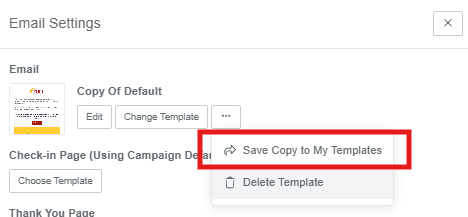
You can also save the email to your template library, and delete it after using it. To do this, click the little gear icon in the check-in. In the email section, click the three dots and choose “Save Copy to My Templates”:
5. Update Campaign Settings
Review the Settings tab on your new campaign and make sure everything matches your original campaign — including suppression lists, conversion lists, blackout dates, reply-to address, and any other configuration.
6. Enroll Contacts and Archive the Old Campaign
Once your new campaign is fully set up and tested, enroll your contacts (via workflow, CSV upload, or connector) and set it to Active. Then archive your original campaign to keep things tidy.
Good to Know
Scheduled campaigns send check-ins on specific dates you choose. All contacts receive the check-in on the same day.
Sequence campaigns send check-ins based on when each contact is enrolled. Each contact moves through the sequence on their own timeline.
Changing campaign types is a common need when you realize a campaign that was built as scheduled would work better as an ongoing sequence (or vice versa). Taking the time to copy everything over ensures your new campaign works exactly as intended.
If you need help migrating a campaign from one type to another, reach out to us at support@propfuel.com!