
How to Check the Date and Time a Check-In Will Go Out
If you want to confirm exactly when an upcoming check-in email is scheduled to send for a specific contact, you can find that information directly in the contact's profile within the campaign.
This is most useful for scheduled campaigns, where check-ins are set to go out on specific dates and times. It can also be helpful for sequence campaigns if you need to verify timing for an individual contact (for example, confirming when their next check-in is queued based on their enrollment date).
Step-by-Step Instructions
Open the campaign you want to check.
Go to the Enrolled Contacts tab.
Click on any active contact in the list to open their profile.
In their profile, click the Scheduled Checkins tab:
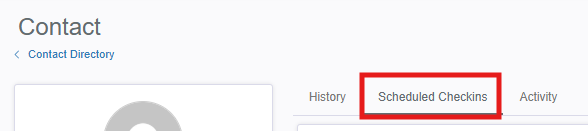
Any upcoming check-in emails — along with their scheduled dates and times — will be listed there.
Good to Know
For scheduled campaigns, all contacts will generally share the same send date and time, so checking any active contact will confirm the timing for the whole campaign.
For sequence campaigns, the scheduled dates are specific to each contact based on when they were enrolled, so you'll need to check individual contacts to see their timing.
If a contact's status is suppressed or they've already completed the campaign, you won't see upcoming check-ins listed.
If you have Blackout Dates configured, the scheduled date shown will reflect the adjusted send date (the next available day after the blackout period).
If you have questions about scheduled check-ins or send timing, reach out to us at support@propfuel.com!