How to Set Up and Manage Blackout Dates in PropFuel
Blackout Dates allow you to prevent check-ins from being sent on specific days — like holidays, weekends, or office closures — across your entire PropFuel account or on a per-campaign basis. Any check-in scheduled to send on a blackout date will automatically be moved to the next available date.
Setting Up Global Blackout Dates
Global blackout dates apply to every campaign in your PropFuel account by default.
Navigate to Advanced Settings → Check-ins.
Find the Blackout Dates section.
Add your blackout rules (see the three types below).
Click Save.
Once saved, any check-in across your entire organization that is scheduled to send on one of these dates will instead be sent on the next available day after the blackout period.
Three Types of Blackout Rules
You can add any combination of these rule types to fit your organization's needs:
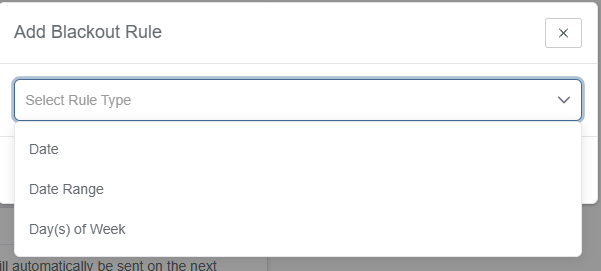
Date
Pick an exact date from the calendar. This is ideal for one-off events or holidays that fall on different days each year.
Example: Block September 25th so no check-ins send on that day.
Date Range
Set a start and end date to block an entire stretch of time. This works well for extended breaks or multi-day events.
Example: Block December 23–31 so nothing sends during the week of Christmas when your office is closed.
Day(s) of Week
Select recurring days of the week when check-ins should never be sent. This is great for organizations that don't want emails going out on weekends or other low-engagement days.
Example: Block Saturdays and Sundays (and Mondays, if your team prefers not to manage responses at the start of the week).
How Blackout Dates Affect Check-Ins
When a scheduled or sequence campaign has a check-in set to send on a blackout date, PropFuel does not skip the check-in. Instead, it automatically reschedules the check-in to the next available day after the blackout period ends.
This applies to both:
Scheduled campaigns with check-ins set for specific dates.
Sequence campaigns where the next check-in falls on a blackout date.
Campaign-Level Blackout Settings
While global blackout dates apply to all campaigns by default, you have full control at the campaign level to customize behavior.
Opting Out of Global Blackout Dates
Open the campaign you want to adjust.
Go to the Settings tab.
Find the Blackout Dates section.
Toggle the setting off to ignore all global blackout rules for this campaign:
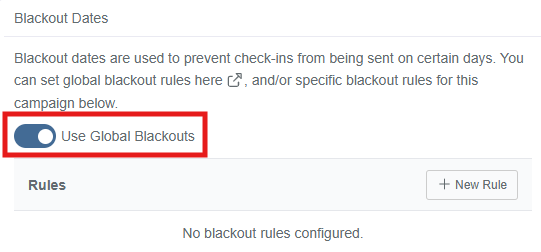
When toggled off, check-ins in this campaign will send as scheduled — even if the date matches a global blackout rule.
Note: By default, every campaign has the global blackout toggle set to on, meaning it will respect whatever blackout rules are set at the organization level.
Adding Campaign-Specific Blackout Rules
You can also keep the global blackout dates active and add additional rules that apply only to a specific campaign.
Open the campaign and go to the Settings tab.
Make sure the global blackout toggle remains on.
Add campaign-specific blackout rules (specific dates, days of the week, or date ranges).
PropFuel will merge the global and campaign-specific rules together. The check-in will be rescheduled if it matches either a global rule or a campaign-specific rule.
Example: Your global rules block weekends. For a particular campaign, you also add Tuesdays as a blackout day. That campaign will now skip weekends and Tuesdays, while all other campaigns only skip weekends.
FAQs
Will blackout dates delete or cancel my check-ins? No. Check-ins are never skipped or deleted. They are automatically rescheduled to the next available day after the blackout period.
Can I have different blackout rules for different campaigns? Yes. You can opt any campaign out of global blackout dates entirely, or you can keep global rules active and add campaign-specific rules on top.
Do blackout dates apply to reminders as well? Blackout dates apply to check-ins. If a reminder is scheduled to send on a blackout date, the same rescheduling behavior applies.
Where do I find the global blackout settings? Go to Advanced Settings → Check-ins → Blackout Dates.
Where do I find the campaign-level blackout settings? Open your campaign → Settings tab → Blackout Dates section.
If you have questions or need help setting up blackout dates for your account, don't hesitate to reach out to us at support@propfuel.com!