PropFuel Home Page
The PropFuel Home page is your daily starting point. It provides a quick snapshot of what’s happening across your account and gives you easy access to the Initiatives you're running. This will be the first page you see when you log in, and you can always return to it by clicking Home in the left navigation menu.
Today's Briefing
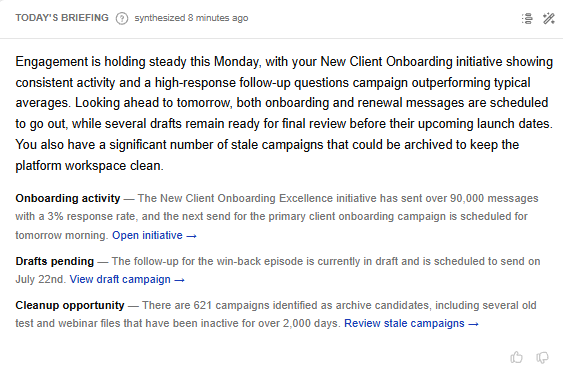
At the top of the Home page, you'll find Today's Briefing, a personalized summary of what’s happening in your account, automatically generated each time you log in. Think of it as your personal daily update.
Membership AI analyzes your account to highlight what matters most right now. It might point out a high-performing campaign, flag open inbox conversations, remind you of upcoming blackout windows, or suggest older campaigns that may be ready to archive.
Every entry features a simple explanation and a clear action button so you can take immediate action.
You can always revisit a previous brief by clicking the history icon in the top right, or use the magic wand icon to regenerate the current brief.
You can also let us know if a brief was helpful by clicking the thumbs-up or thumbs-down icons; this helps Membership AI get smarter over time.
Upcoming Sends
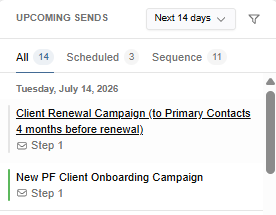
The Upcoming Sends panel in the top right is an account-wide calendar view of all email and SMS check-ins sending within the next 14 days.
This timeframe can be expanded or narrowed by clicking the dropdown menu at the top. Additionally, you can filter the view to display either scheduled campaigns or sequence campaigns individually.
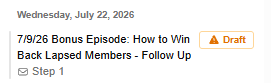
Each entry shows the campaign name, along with the exact check-in sending. Hover over the entry to view more details of the send, such as the sending window and the number of contacts set to receive the check-in. From here you can also jump quickly to the editor for that campaign.
If you see a warning icon, that’s a reminder that the check-in is still in draft status:
Your Initiatives
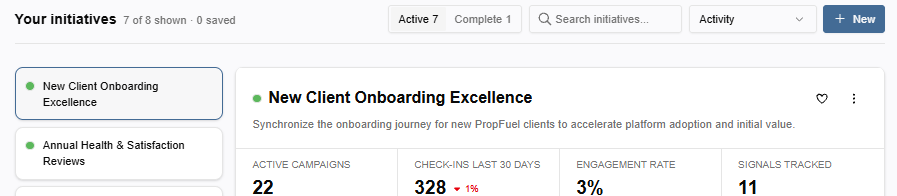
Below the briefing, the Your Initiatives section is where you manage the bigger-picture goals, such as onboarding new members or gathering member feedback. Instead of tracking campaigns separately, an Initiative lets you bundle related efforts to see how they perform as a whole.
Once you create an Initiative, you’ll see it in your list on the left. Click on one to jump to the Initiative’s activity and performance details on the right.
The tabs on each Initiative let you dig deeper into what’s happening across its campaigns. Recommendations summarizes how the Initiative is performing and recommends what to do next. The Signals tab shows which behavior patterns are being tracked for this Initiative and how many contacts match them. The remaining tabs (Campaigns, Recent Responses, Upcoming Sends) give you the underlying data behind those insights.
Together, these tools let you check in on an Initiative's health and jump straight into action.
To keep your most important goals front and center, click the heart icon to pin an Initiative to the top of your list. These are user-specific, allowing each user to independently track the Initiatives most relevant to them.
Start each day on the Home page: check Today's Briefing for what needs attention, scan Upcoming Sends to stay ahead of what's going out, and use Your Initiatives to track progress toward your bigger goals. From here, you're always one click from your next move.