
Enrolling Segments into a Campaign
Segments are the primary way to enroll or suppress contacts in a campaign, using the Contacts tab in the campaign editor.
Click Add Segment in either the Included Segments or Suppress Segments section to begin defining the campaign’s audience:
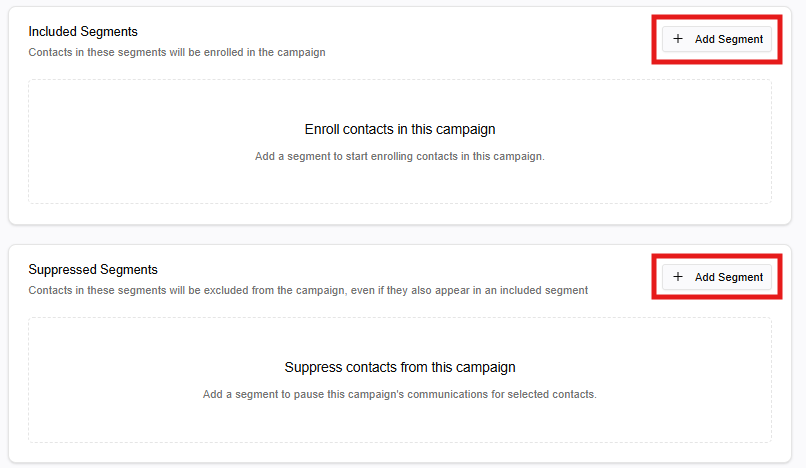
Segments added to the Include Segments section will be enrolled in the campaign.
Segments added to the Suppressed Segments section will not receive any of the campaign's communications. Even if a contact also appears in an included segment, the suppression takes precedence.
Search for the desired segment in the Select Segment window that appears. Favorited segments are surfaced first or use the search to find the one you want to add.
Next, determine how changes in the selected segment will affect who is enrolled in the campaign.
Continuous Sync: Contacts are enrolled in the campaign as they meet the segment criteria and removed from the campaign if they stop meeting the segment criteria.
Best for: when the campaign's value depends on real-time relevance
Add Only: Contacts are enrolled in the campaign if they meet the segment criteria and will remain in the campaign even if they stop meeting the segment criteria.
Best for: when the campaign is a triggered journey you want contacts to complete, regardless of how their data changes
Fixed: Enrolls the segment's current contacts. No contacts will be added or removed after the segment is added to the campaign, even if the segment’s contacts are updated.
Best for: point-in-time campaigns where the list is intentional and shouldn't shift
Enrolled Contacts
The Enrolled Contacts section allows you to view and manage campaign contacts on an individual level.
The table displays the contacts in the campaign along with their status, enrollment date, as well as how the contacts were enrolled – workflow, manually, upload, or segment.
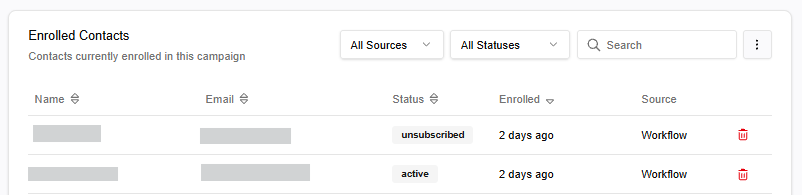
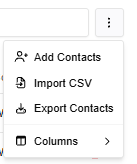
Click the 3-dot menu in the top-right corner of the table for additional actions, such as adding contacts to a campaign individually from the Contact directory or via CSV upload, managing the columns displayed, and exporting the current contacts:
Need to upload a list for your segment? Follow these steps.
Clicking the trash can icon on an individual contact will remove the contact from the campaign. Contacts added through a segment cannot be removed.