
How to Merge and Delete Contacts in PropFuel
Occasionally, duplicate contact records can appear in PropFuel — even with the same email address. This can happen due to timing issues during syncs, data inconsistencies, or other edge cases. When duplicates exist, you can merge them into a single record directly from the platform. PropFuel also provides tools to permanently delete individual contacts or contacts in bulk.
How to Merge Contacts
When you merge two contacts, you are keeping one record and folding the other into it. The contact you start from (the duplicate) will be permanently deleted, and their activity — previously asked or answered questions, campaign history, etc. — will be reassigned to the contact you merge into.
Step-by-Step
Go to Contacts and search for the duplicate contact (the one you want to get rid of).
Open their profile.
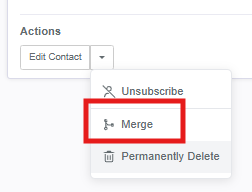
Scroll down to Actions, click the small dropdown arrow, and select Merge:
Search for and select the contact you want to keep (the one you want to merge into).
Click Merge.
Confirm the merge when prompted. This action is permanent and cannot be undone.
PropFuel will redirect you to the kept contact's profile, which now includes all activity from both records.
Important: Always start the merge from the duplicate's profile — the one you want to remove. The contact you search for and select in step 4 is the one that will be kept. If you have a connector (like NetForum, Salesforce, etc.), make sure you're keeping the contact that is connected to your AMS. If you merge starting from the AMS-connected profile, you'll lose its connection and field mappings.
How to Permanently Delete a Contact
If you need to remove a contact entirely from PropFuel (not just from a campaign), you can do so from their profile.
Go to Contacts and search for the contact.
Open their profile.
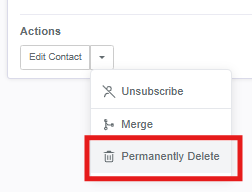
Scroll down to Actions, click the small dropdown arrow, and select Permanently Delete:
Confirm the deletion when prompted.
This permanently removes the contact record and all of their activity in the platform (responses, campaign history, etc.). This cannot be undone.
How to Bulk Delete Contacts
If you need to delete a large number of contacts at once — for example, deceased members or contacts that have been removed from your AMS — you can use the bulk delete tool.
Navigate to Settings → Advanced → Data Management → Delete Contacts.
You have two options to build your deletion list:
Search one by one: Search for a contact by name or email and add them to the list individually.
Upload a CSV: Upload a CSV file containing the email addresses of the contacts you want to delete. PropFuel will search your existing contacts for matching email addresses and populate the list.
Review the list. If you want to keep any of the contacts that were found, remove them from the list before proceeding.
Click Delete and confirm when prompted.
The contacts and all of their activity will be queued for permanent deletion. This action is irreversible.
Important Notes
Merging is permanent. Once two contacts are merged, there's no way to separate them again. Double-check which contact you're keeping before confirming.
Deleting is permanent. Deleted contacts and all their associated data (responses, campaign history, tags) are removed from the platform entirely.
Deleted contacts may reappear. If a deleted contact's record still exists in your AMS and you have an active connector, PropFuel will re-sync that contact during the next data pull. To prevent this, make sure the contact is also removed or deactivated in your AMS before deleting them from PropFuel.
If you need help merging or deleting contacts, reach out to us at support@propfuel.com!