AI Email Campaign Builder
The Membership AI Campaign Builder is your partner in drafting effective email campaigns.
Simply describe the campaign you want, and Membership AI does the planning and drafting for you. Nothing is built until you say so, and every campaign is created as a draft for you to approve and launch in the campaign editor, keeping you in control every step of the way.
For each campaign, the builder will set the campaign cadence or schedule, email and landing page copy, and check-ins with questions and answer options. It can also configure question workflows, such as branch campaigns, tags, and alerts.
Membership AI uses foundational campaign use cases to guide the build process or it creates a custom campaign when there is not a clear use case match.
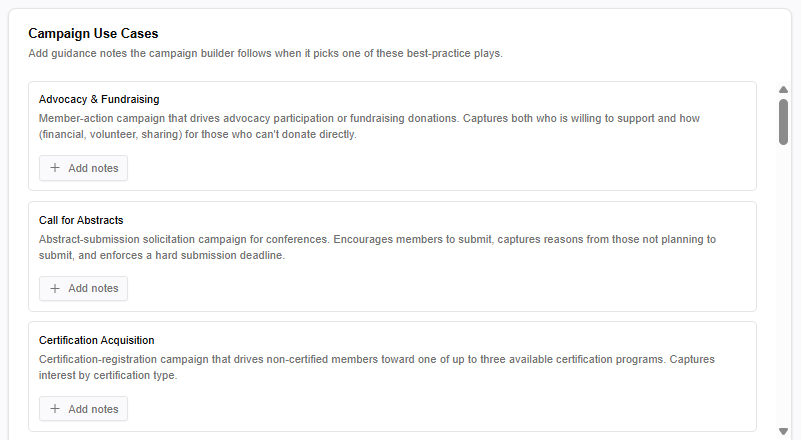
The Campaign Use Cases section, located at the bottom of your Org Profile in Settings, enables you to provide tailored instructions to Membership AI for individual use cases. These settings allow you to establish specific template settings, tones, or recurring customizations for each use case. For instance, you could specify a playful tone for event registration campaigns or dictate that renewal campaigns always originate from a particular sender.
Getting Started
When you open the AI Campaign Builder, you'll land on a page centered around a single prompt: "What kind of campaign do you want to build?" A prompt box below it lets you describe your campaign goal in plain language.
Below the prompt box, four personalized campaign suggestions offer ready-made prompts tailored to what Membership AI already understands about your organization. A total of 12 suggestions are generated daily and rotated in groups of four, so if none quite fit, you can refresh the page to surface new options. Click any suggestion to drop it into the prompt box, where you can edit it before sending or skip them entirely and enter your own prompt.
When your prompt is ready, press Enter on your keyboard or click the arrow in the box to send it.
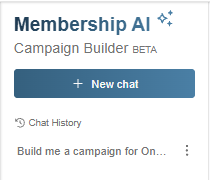
On the left, a Chat History panel keeps track of every campaign you've previously described, so you can revisit or pick up where you left off. Your chat history is private to you; no one else in your organization can see your chats. Click the three dots next to any chat to pin or delete it.
Planning Mode
Once you send your prompt, Membership AI enters planning mode and asks a few questions to understand the details of the campaign.
If you have a relevant link, paste it in and Membership AI will pull details straight from the page. Otherwise, it will ask a few simple questions to gather what it needs.
Next, it will ask about email details, such as campaign name, email subject line, sender name and email address. Membership AI pre-fills these based on what it knows about you and your organization, but you can edit any of them in the form it shows you.
Once it has everything it needs, Membership AI will create a campaign plan for you to review before anything is created.
The plan will outline the campaign structure, including:
The campaign name, type (scheduled or sequence), and who it’s from
Each check-in’s details:
Cadence or scheduled date
Subject line
Question and answer options
Question workflows for each answer option
Want to make changes? Just tell Membership AI what to adjust. It will revise the plan and present the updated version to you. You can go back and forth as many times as you like until the campaign looks exactly as you want.
When you’re happy with the plan, simply tell Membership AI to build it. Every campaign is created as a draft. Nothing goes live automatically; you approve and launch it yourself in the campaign editor.
Note: This process may take a few minutes. Feel free to navigate away from the chat. Membership AI will continue building in the background and notify you once the build is complete.
After building, the AI shows a final summary of what it created, including:
The check-ins created in the campaign
Any branch campaigns created as part of your workflows
A list of to-dos before you activate, such as adding your audience
Simply click the provided links to open the campaign editor for either the top-level campaign or any associated branch campaigns.
You can also find a campaign later by its campaign tag, which the AI Campaign Builder automatically adds to each campaign it creates. You'll find this tag at the top of the campaign creation confirmation.
Once your draft is built, head to the campaign editor to add your audience and launch. From prompt to ready-to-send campaign in minutes.