
How to Save a Reply Template for the PropFuel Inbox
When replying to contact responses in PropFuel, you can save your replies as templates so you can reuse them later. This is especially useful when you find yourself sending similar follow-ups to multiple contacts — like directing people to the same resource, answering a common question, or providing a standard next step.
How to Save a Reply Template
To save a template, you'll first need to send it through the PropFuel Inbox. We recommend sending yourself a test email, then replying to it directly from your inbox so the conversation appears in PropFuel.
Send yourself a test email from a campaign.
Reply to the test email from your regular inbox. That test conversation will show up in your PropFuel Inbox.
In the PropFuel Inbox, open the conversation and click Reply.
Add your reply content — the message text, any formatting, your logo, signature, etc.
Instead of clicking Send, click the small dropdown arrow next to the Send button.
In the "Send and Save as Template" field, enter a descriptive name for your template (e.g., "Reply with logo" or "Volunteer opportunities – Atlanta").
Click Send.
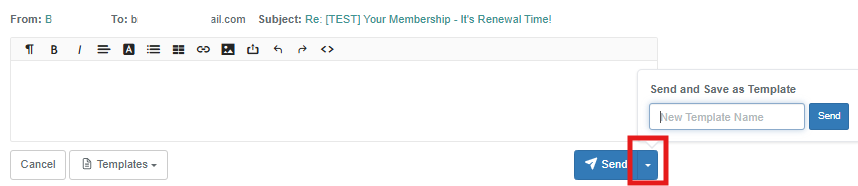
Your reply will be sent, and the template will be saved to your library. From then on, your template will be available in your library, ready to use and edit anytime.
How to Use a Saved Reply Template
Open a contact's response and click Reply.
Click the Templates button in the reply window.
Select the template you want to use from your saved templates:
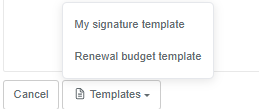
The reply window will populate with the template's content — including the message text and from information.
Edit the content as needed for this specific contact, then click Send.
You can also save edited versions as new templates if you create a variation you'd like to reuse (e.g., the same reply but for a different city or event).
Tips
Build a library of common replies. If your team frequently answers the same types of questions — volunteer opportunities, event details, renewal instructions — save a template for each one so anyone on the team can use them. These templates will be in your Templates tab in Settings:
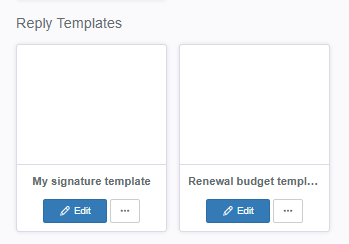
Templates save the full reply content including formatting and text. Review templates periodically to make sure links, dates, and details are still current.
Any PropFuel admin can access saved templates, so templates you create will be available to your whole team.
If you need help setting up reply templates, reach out to us at support@propfuel.com!