How to Track When a Contact Clicks More Than One Response Option
In campaigns where you're asking contacts about their interests — like onboarding campaigns with options such as Education, Networking, Savings, Advocacy, etc. — contacts may go back to the email and click additional options after their initial response. When this happens, PropFuel only saves the most recent selection to the contact's profile. It always records the last option clicked.
This means if a contact originally clicks "Education" and then goes back and also clicks "Networking," their recorded response will update to "Networking" — and the "Education" selection will be overwritten.
Using Tags to Capture Every Selection
To make sure you capture all of a contact's interests — not just the last one they clicked — we recommend adding tags to each response option in your workflow actions. Tags stay on the contact's profile permanently regardless of later clicks, so you get the full picture of everything they expressed interest in.
For example, if your onboarding question is "What matters most to you as a member?" with options like Education, Networking, Savings, and Advocacy, you would set up your workflows like this:
If Selection = "Education" → Add Tag: "Interest – Education"
If Selection = "Networking" → Add Tag: "Interest – Networking"
If Selection = "Savings" → Add Tag: "Interest – Savings"
If Selection = "Advocacy" → Add Tag: "Interest – Advocacy"
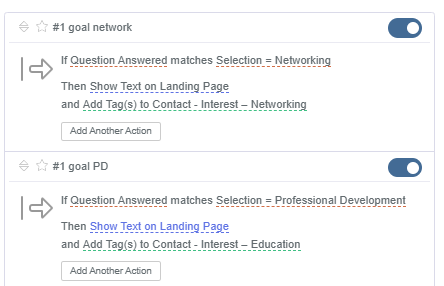
Now, if a contact clicks "Education" first and then goes back and clicks "Networking," their recorded response will show "Networking" — but both the "Interest – Education" and "Interest – Networking" tags will remain on their profile. You'll know they expressed interest in both topics:
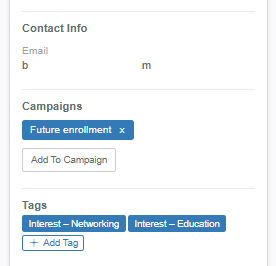
This is especially valuable in onboarding and engagement campaigns where understanding the full range of a contact's interests helps you personalize future communications and route them to the right resources.
For step-by-step instructions on setting up tags in your workflows, check out our help article: Using Tags in PropFuel: How to Add and Remove Contact Tags in PropFuel.
If you have questions about tracking responses or setting up tags, reach out to us at support@propfuel.com!