
How to Add Bullet Points to Email Templates in PropFuel
PropFuel's email template editor does not have a native bullet point button, but you can create the appearance of a bulleted list using a simple workaround with icons and padding adjustments.
Step-by-Step Instructions
1. Insert a Bullet Icon
Add a new text block, type a bullet character (•) followed by a space and your text. You can copy and paste this character: •
Your text should look something like this:
First item in your list
Second item in your list
Third item in your list
Tip: You can also use other characters like a dash (–) or an arrow (→) if you prefer a different style.
2. Adjust the Padding
To make your list look properly indented — rather than flush with the rest of your email text — adjust the padding on the text block containing your bullet points:
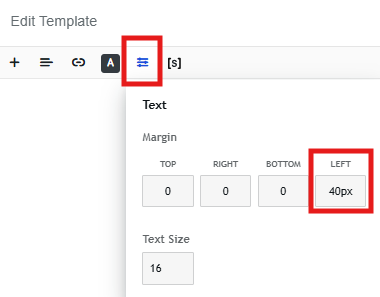
In the email template editor, select the text block and increase the left padding to create the indented look of a traditional bulleted list. A small increase (around 30–40px) is usually enough to visually separate the list from the other content:
3. Preview and Test
Send yourself a test email to make sure the bullet points render correctly across email clients. Since these are text characters (not HTML list elements), they display consistently in most inboxes.
Tips
Be consistent with the bullet character you choose throughout the email.
If you use this format frequently, consider creating a saved template with the bullet formatting and padding already in place so you can reuse it across campaigns.
If you need help formatting your email templates, reach out to us at support@propfuel.com!